Two lighting plans: backdrop and presenter
Light has two separate jobs in a green screen studio. The backdrop light has a single aim: to turn the green surface into one even, shadow-free tone. The presenter light shapes the face and places the person in the virtual scene. Trying to do both with one light throws the presenter’s shadow onto the backdrop and leaves a hot spot on it.
So plan the backdrop and presenter lights as separate groups and control them separately. Light the backdrop first, then the presenter. Being able to switch each group on and off on its own, from an app or a DMX console, speeds up setup and troubleshooting. At ISF Studios the whole lighting system is run from a central console over DMX 512; see our DMX lighting control guide for details.
Lighting the backdrop evenly and measuring it
Choose broad, soft sources for the backdrop. COB spotlights with large softboxes, or linear soft lights, wash the surface evenly; a bare, hard light leaves a bright patch in the middle. Place the lights on both sides of the backdrop, angled towards it, and let their pools of light overlap slightly. On a tall backdrop the upper and lower parts may need separate lights to balance them.
Moving the lights further from the backdrop also improves evenness: the further away the source, the smaller the difference between the near and far parts of the surface. The trade-off is that illuminance falls with the square of the distance. Our lux and watts guide helps you work out the power you need.
For backdrop brightness, a common starting point is the same level as the presenter’s key light or slightly below it. A backdrop that is too bright loses saturation and throws more green onto the presenter; one that is too dark adds noise and leaves dirty edges. Check evenness by measuring, not by eye:
- Light meter: take readings at the corners, in the centre and in the area behind the presenter, with the meter’s dome pointed at the camera. A common target is to keep all readings within about 1/3 stop of each other.
- False colour: the false colour view on the camera or monitor shows brightness ranges as colours. An even backdrop shows up in a single colour; patches of another colour reveal hot spots or darker corners.
- Waveform: an even backdrop draws a thin, flat line. A thick band, or a line that drops towards the edges, shows that the backdrop is uneven.
- Final check: repeat the measurement with the presenter lights on and the actual shot framed; key light falling on the backdrop changes the result.
Distance between presenter and backdrop
Moving the presenter away from the backdrop is one of the most effective steps in a green screen studio. With more distance, less green light bounces onto the presenter, the key light’s shadow falls on the floor instead of the backdrop, and the backdrop can be set independently of the presenter light. When the backdrop is outside the depth of field, creases and texture in the fabric also show less.
In common practice 2–3 m is left between presenter and backdrop; if the room allows, more distance reduces spill further. That distance comes out of the room’s depth: the backdrop, the gap between presenter and backdrop, the gap between presenter and camera, and the working space behind the camera all have to fit. In a room 6 m deep, for example, placing the presenter about 2.5 m in front of the backdrop leaves a similar distance for the camera.
In shots that show the feet, the presenter stands on the green floor and distance alone is not enough; the floor needs its own plan. For the other measurements of the space, see our guide to what you need to build a studio.
Green spill on hair and shoulders
Green spill is green light that bounces off the backdrop onto the presenter’s hair, shoulders, the edges of the ears and glasses. When the key is pulled, these areas show up as a greenish fringe or semi-transparent holes. Spill increases as the presenter moves closer to the backdrop and as the backdrop is lit brighter than it needs to be.
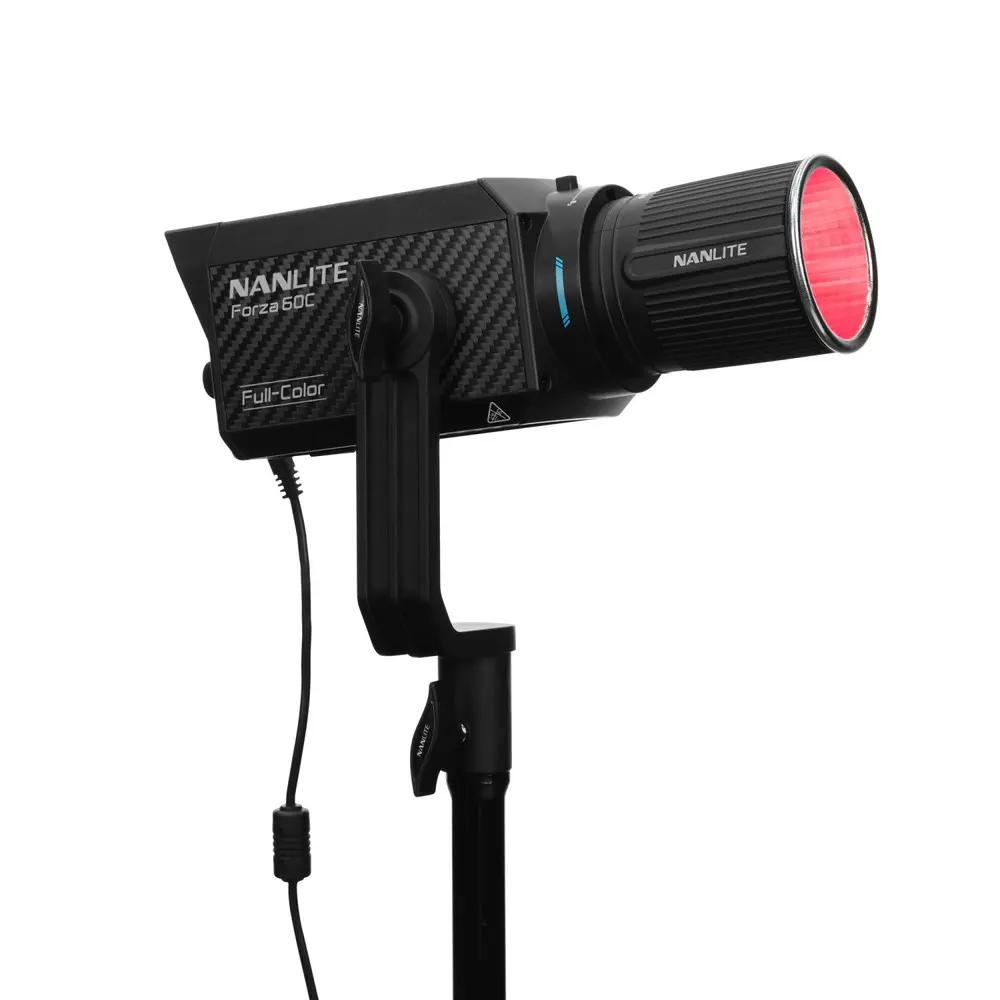
The most effective tool is the back light. A light from behind and above the presenter, opposite the camera, lights the hair and shoulder line, suppresses the green tint and separates the person from the virtual background. Adding a touch of magenta (minus green) to the back light can help neutralise the remaining green. With a light that offers ±100 G/M adjustment, such as the Nanlite Forza 60C, you can do this without gels. Do not overdo it; hair and skin colour should not change. Besides the back light, these steps also reduce spill:
- Do not over-light the backdrop; keep its level at or below the presenter’s key light.
- Cover green surfaces that are out of shot, such as the floor in waist-up shots, with dark fabric.
- Use flags to keep backdrop light off the presenter and back light out of the lens.
- Avoid green-toned, shiny, finely striped and sheer fabrics such as tulle; check reflections in glasses on camera.
- The keyer’s spill suppression cleans up the remaining green. Spill prevented with light, however, always gives a cleaner result.
Matching the presenter light to the virtual set
However clean the key, if the presenter’s light does not match the virtual scene, the picture looks pasted together. Viewers may not be able to say why, but they see the difference at once. Match the light to the virtual scene on these points:
- Direction: put the key light on the same side as the window, sun or studio light in the virtual scene, at a similar height.
- Colour temperature: keep the camera’s white balance and the backdrop light fixed, and change only the presenter light. Warming the key slightly for a warm interior and leaving it neutral for a daylight scene may be enough.
- Softness: an overcast exterior or an office with large windows calls for a soft, broad key light; a sunny scene calls for harder light and defined shadows.
- Contrast: set the fill level to match how dark the shadows are in the virtual scene.
- Back light and colour: if the virtual scene has a bright window or a coloured screen behind the presenter, the back light’s direction and colour should support it. Full-colour lights do this without gels.
- Stored scenes: if you use several virtual sets, store each set’s lighting as a scene and recall it with one command.
Colour accuracy, flicker and camera settings
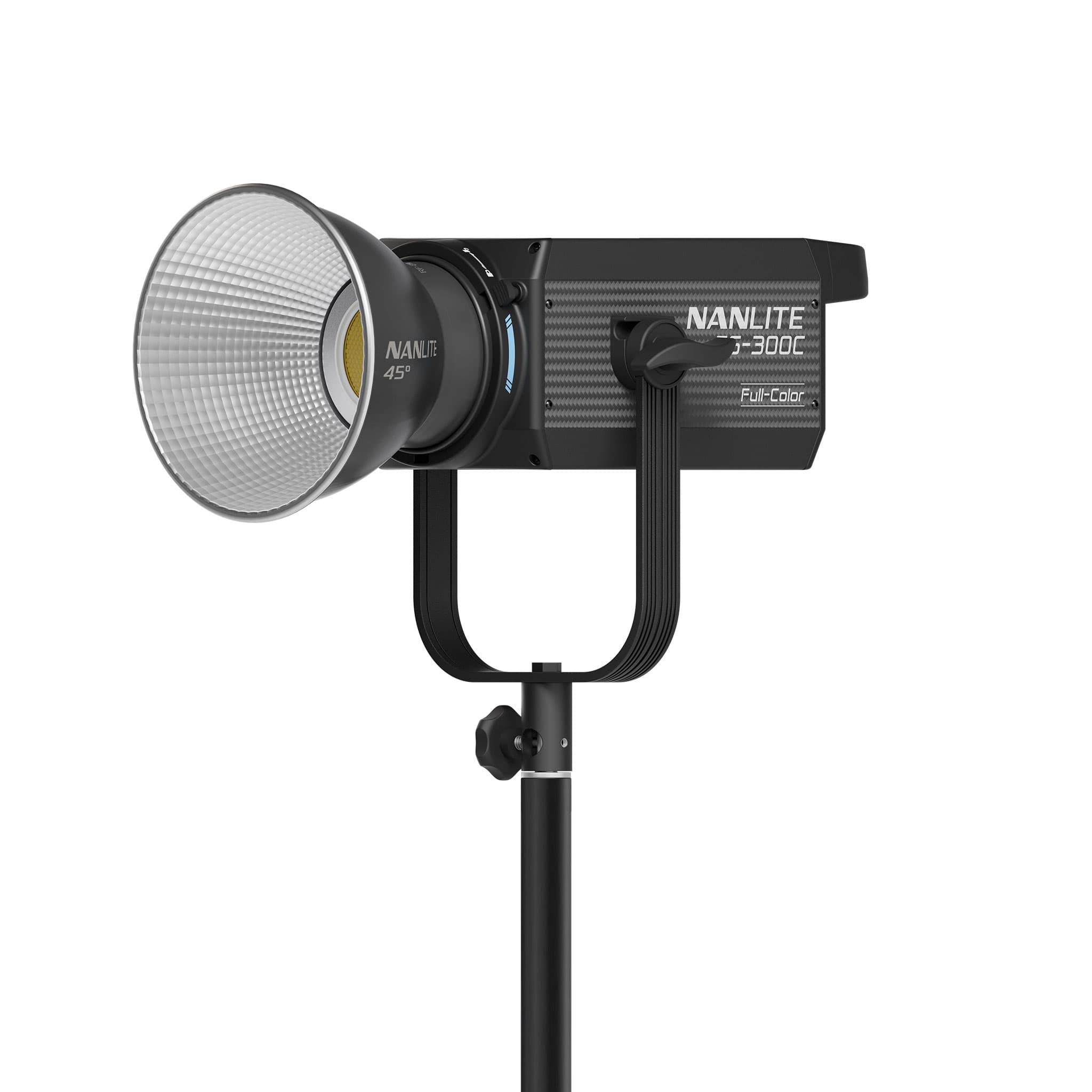
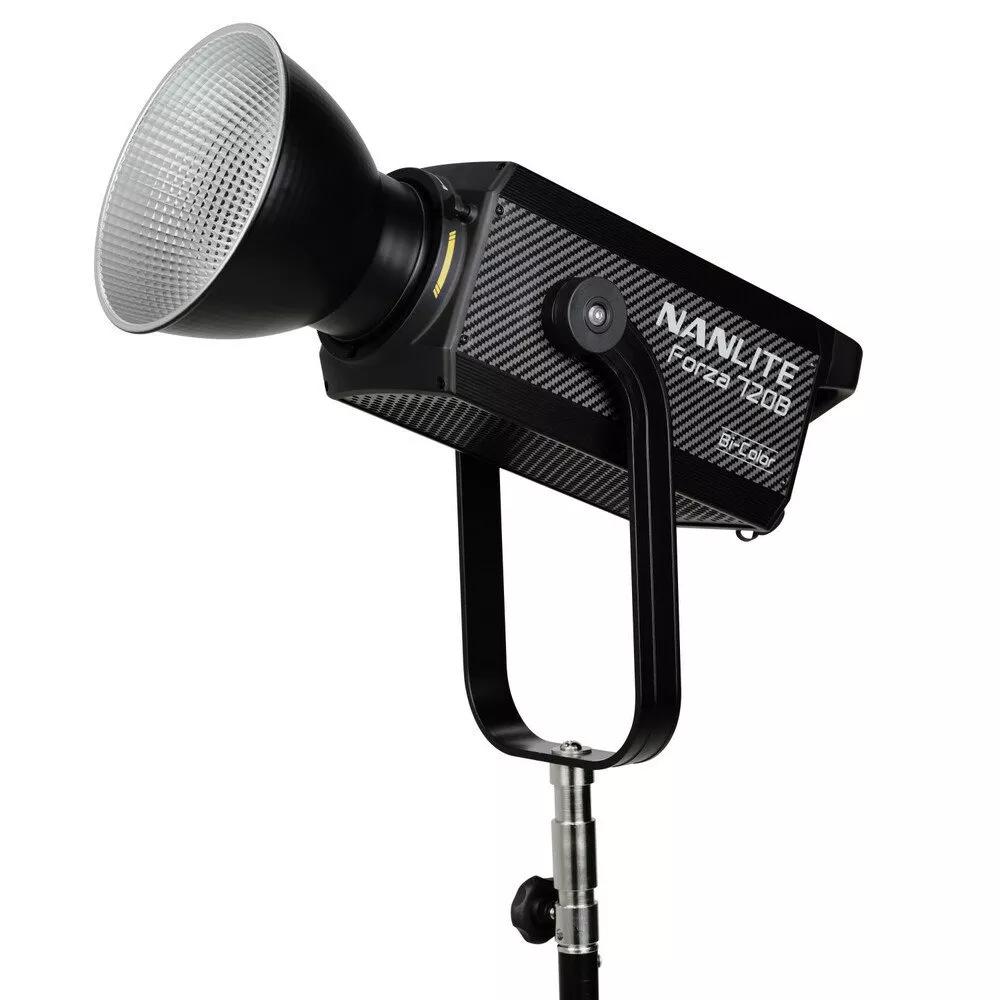
The keyer separates the green using colour information, so the colour quality of the light shows directly in the key. Lights with high CRI and TLCI values render skin tones accurately and the green as a saturated colour. Because TLCI rates light as a camera sees it, it is the more meaningful measure for video. For example, the manufacturer states CRI 96 / TLCI 97 for the Nanlite Forza 720B and CRI 95 / TLCI 94 for the Nanlite FS-300C.
If you mix models and brands, set every light to the same colour temperature and even out green/magenta differences between them with the G/M adjustment. Locking the whole system to a single colour temperature is also a method we use often; at Istanbul Kültür University and ISF Studios we fixed the system at 5,600 K.
Flicker causes trouble in two places in a green screen studio: on the presenter’s face it shows as banding or pulsing, and on the backdrop it changes brightness from frame to frame, which makes the key edges shimmer. Test the lights with your own camera at your target frame rate and shutter. On the camera side, these basic settings make keying easier:
- Exposure: expose for the presenter so that faces and light-coloured clothes keep their detail, without letting the backdrop get too bright.
- Shutter: motion blur on fast hand and hair movements mixes green into the edges. Start from the standard shutter for your frame rate (e.g. 1/50 s at 25 fps); if there is a lot of movement, shorten it a little and check with a test recording. A shorter shutter can also make flicker visible.
- Recording format: if possible, record with 4:2:2 or higher chroma subsampling and light compression. A 4:2:0 recording carries less colour information, which makes key edges coarser.
- Sharpening and gain: turn the camera’s sharpening (detail) off or down, as it creates a thin halo around edges. Noise degrades the key, so keep ISO or gain close to the camera’s base value.
- White balance: set it manually and lock it; auto white balance can shift the green’s hue during a shot.
Floors, corners and low ceilings
Lighting a flat wall evenly is relatively easy. The hard parts are the floor, the corners and the space the ceiling leaves for the lights.
Green floor
In wide shots that show the feet, the floor is part of the key and often its hardest part. It takes the top light and presenter light directly, a shadow forms at the presenter’s feet, and the floor can read brighter or darker than the wall. Check floor and wall separately on the waveform and bring them to the same level.
Decide on shadows before the shoot: you can minimise them with a broad, soft top light or, if your keyer supports it, keep a natural contact shadow. The floor surface must be matt and clean; footprints, scratches and shiny paint show up as blotches in the key. Shoe covers during shoots and repainting worn areas protect the floor.
Corners and coves
Where wall and floor, or two walls, meet at a sharp corner, light falls on each surface at a different angle and the corner shows on camera as a darker or lighter line. The curved transitions of a fixed cyclorama remove that line; still, measure the curve separately, because it can darken even when wall and floor are even. With a curtain, stretch the fabric well; creases and seams cause tonal shifts.
At Bahçeşehir University we built the cyclorama as well as the lighting; to let students learn virtual production with the right technique, we aimed for a shadow-free floor and high colour quality. We compare a fixed cyclorama with a curtain on our green screen studio installation page.
Low ceilings
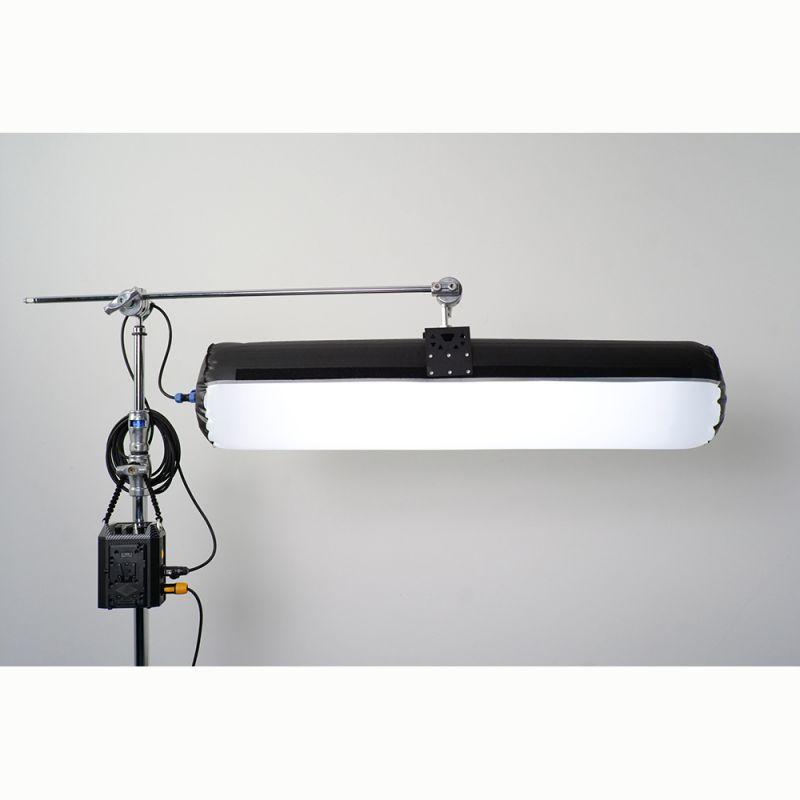
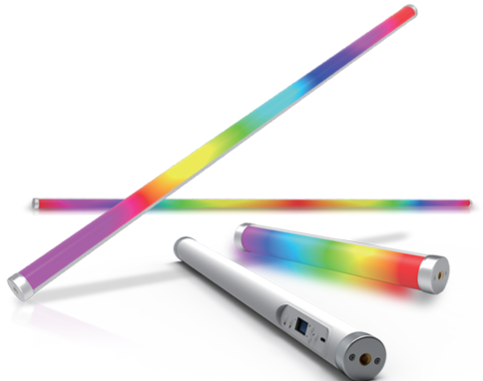
Under a low ceiling the lights come closer to the frame. Hot spots can appear on the top edge of the backdrop and on the presenter’s head, and the key light can come down too steeply and leave dark shadows in the eye sockets. Slim, broad sources rigged close to the ceiling save space, and lighting the lower part of the backdrop from floor level takes load off the lights above. The inflatable Pheon Lux Air Lux M18C can serve as a top light close to the ceiling, and slim Pheon Lux Phantom M pixel tubes as backdrop lights at floor level, kept out of shot.
LED lights give off much less heat than old tungsten lights, which matters for the presenter’s comfort in small rooms with low ceilings. We built Istanbul Kültür University’s green screen studio in Ataköy under a 2.85 m ceiling, using slim panels to keep headroom.
Virtual production and XR: the next step
When a camera tracking system is added, the virtual background moves with the camera. As the camera turns or zooms, the key is pulled from other parts of the backdrop, so not just the area behind one shot but every green surface the camera can see must be even. Tracking, lens calibration and virtual studio software are a separate specialist field; plan the lighting together with the provider of those systems. Some software can run studio lights over DMX, so DMX or wireless CRMX support in the lights becomes more important.
In CNBC-e’s virtual production studio in Tekstilkent we lit the backdrop shadow-free and even, and the presenter with a separate lighting setup.
In XR studios with LED walls, an LED screen takes the place of the green backdrop. The screen forms the scene’s image directly in camera and gives the presenter light and reflections in the scene’s colours. A key light to shape the face and a back light are still needed, and their colour should match the image on the screen.
Example equipment lists
The table below is not a quote; it is a starting point, and the quantities are examples. For the small green screen we assumed a room of about 4 × 6 m, a curtain or small fixed backdrop and one presenter in waist-up shots. For the mid-size one we assumed an area of about 8 × 10 m, a cyclorama with a green floor and two presenters at a desk. The final list comes from a free site survey, once measurements and shots are clear.
The products listed are Nanlite and Pheon Lux models; True Medya is the distributor of both brands in Türkiye (Turkey). We cover the tubes and inflatables in detail in our Pheon Lux pixel tube and inflatable light guide.
In long recordings such as lectures, a soft key light matters for the speaker’s comfort. We built Meta Digital Education’s lecture recording studio in Ümraniye turnkey, from the green screen set to the lighting.
| Job | Small green screen (about 4 × 6 m) | Mid-size green screen (about 8 × 10 m) |
|---|---|---|
| Backdrop light | 2–4 × Nanlite FS-300C + large softbox | 4–6 × Nanlite Forza 720B + large softbox |
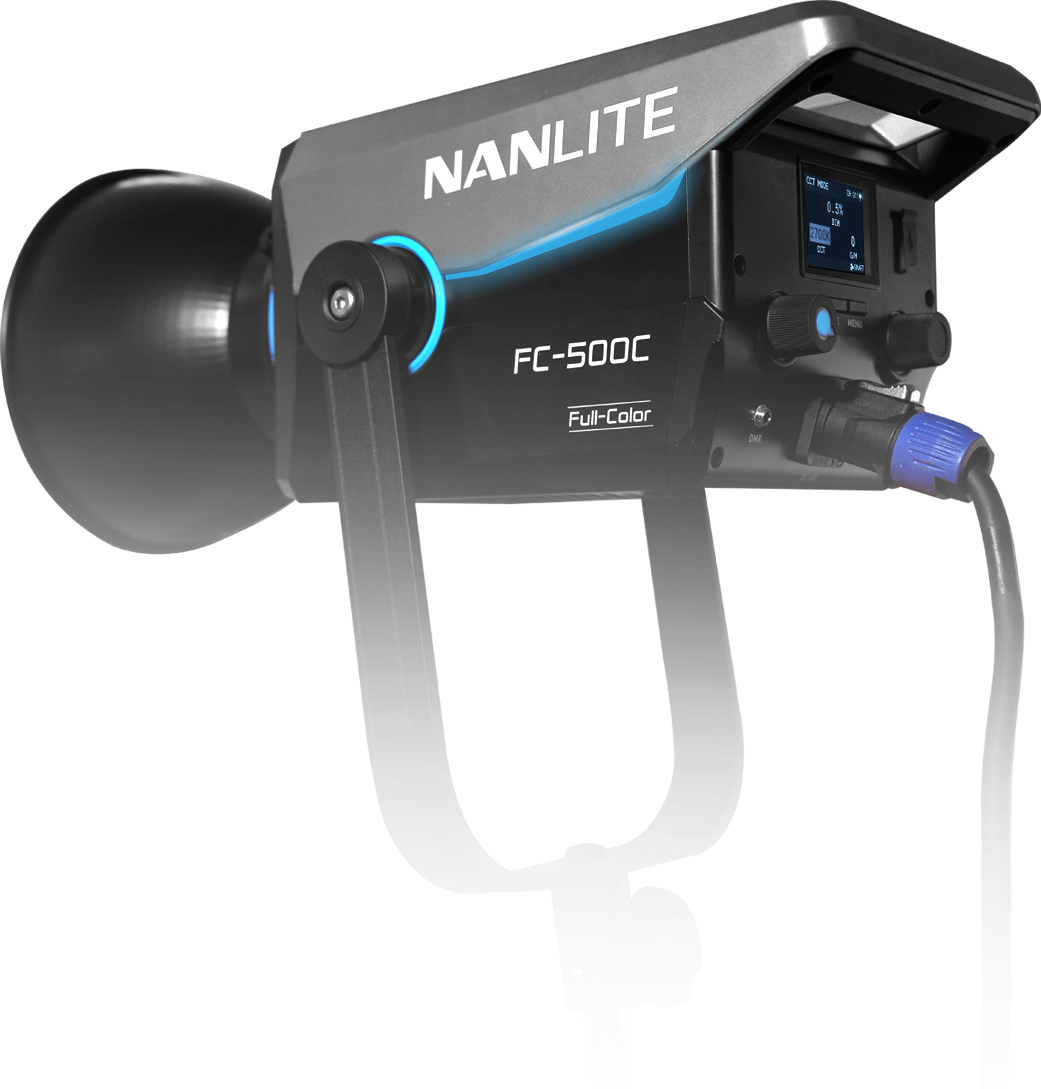
| Key light | 1 × Nanlite FS-300C + softbox | 2 × Nanlite FC-500C + large softbox |
| Fill light | A reflector or a second FS-300C at low level | 1–2 × Nanlite FC-500C + softbox |
| Back light | 1 × Nanlite Forza 60C, or 2 × Pheon Lux Phantom M pixel tubes standing upright on either side of the presenter, slightly behind | 2–4 × Nanlite Forza 60CR |
| Top light | Usually not needed | 1–2 × Pheon Lux Air Lux M18C over the presenter desk |
| Control | App (e.g. NANLINK) | DMX console; wireless CRMX for the Forza 60CR and Air Lux M18C |
Pre-shoot checklist
- Backdrop and presenter lights set up as separate groups
- Backdrop measured with presenter lights on; spread within about 1/3 stop
- Presenter far enough from the backdrop, with no shadow on it
- Green spill on hair, shoulders and glasses checked on camera
- All lights at the same colour temperature, white balance set manually
- Flicker tested at the target frame rate and shutter
- Wardrobe and accessories tried in front of the green screen
- A short test recording tried in the keyer software
- Light settings saved as scenes
Frequently asked questions
Green screen or blue screen?
Green is the common choice. Most camera sensors have twice as many green-sensing pixels as red or blue ones, so the green channel is more detailed and less noisy, and a green screen needs less light for the same brightness. Because it is brighter, though, it throws more spill onto the presenter. If there is green clothing or a green prop in the scene, blue can be the better option; a blue screen needs more light for the same level. Decide together with the keyer software you will use.
How many lights does a green screen need?
For a small green screen with one presenter, a common starting point is two lights for the backdrop, a key light and a back light, with a reflector or a second light for fill. The number grows as the backdrop gets wider, the floor comes into shot and more people appear in frame. The exact count comes from the room’s measurements during the site survey.
How do I prevent green spill?
Move the presenter away from the backdrop, do not light the backdrop brighter than it needs to be, and separate the hair and shoulder line with a back light from behind. Covering out-of-shot green surfaces with dark fabric also helps. The keyer’s spill suppression cleans up what remains.
Can I build a green screen with my existing lights?
Lights with adjustable colour temperature, no flicker on camera and high CRI/TLCI values can usually be used. Test them with your own camera at your target settings. During the site survey we also assess your existing equipment and work out with you what is missing.